Docker (一) 基本管理
文章目录一、Docker概述1.简介2.特点3.与虚拟机的区别4.使用Docker的意义5.namespace:名称空间6.CGroups:控制组二、Docker的核心概念与安装1.镜像:image2.容器:container3.仓库:repository4.安装Docker4.1 安装依赖包4.2 设置阿里云镜像源4.3 安装docker社区版4.4 启动docker4.5 查看docker服务
一、Docker概述
1.简介
Docker是一个开源的应用容器引擎,让开发者可以打包他们的应用以及依赖包到一个可移植的镜像中,然后发布到任何流行的Linux机器或Windows机器上,也可以实现虚拟化。容器时完全使用沙箱机制,相互之间不会有任何接口。
2.特点
- 服务彼此之间相互独立(服务之间的解耦)
- 服务可以灵活迁移
耦合是指两个或两个以上的体系或两种运动形式通过相互作用而彼此影响以至联合起来的现象
解耦是指用数学方法讲两种运动分离开来处理问题,常用解耦方法就是忽略或简化对所研究问题影响较小的一种运动,之分析主要的运动(便于管理,防止数据过多的积累在一个文件中)
3.与虚拟机的区别
- 虚拟机容量占用打,容器不需要装系统,占用容量小
- 虚拟机安全,容器不安全(共享内核资源),攻击一个内核,其他全部瘫痪
| 特性 | 虚拟机 | 容器 |
|---|---|---|
| 隔离级别 | 操作系统级 | 进程级 |
| 系统资源 | Hypervisor | CGroups |
| 系统资源 | 5-15% | 0-5% |
| 启动时间 | 分钟级 | 秒级 |
| 镜像存储 | GB | MB |
| 群集规模 | 一般几十台 | 成百上千 |
| 封装程度 | 完整的操作系统 | 只打包醒目代码和依赖关系,共享宿主机内核 |
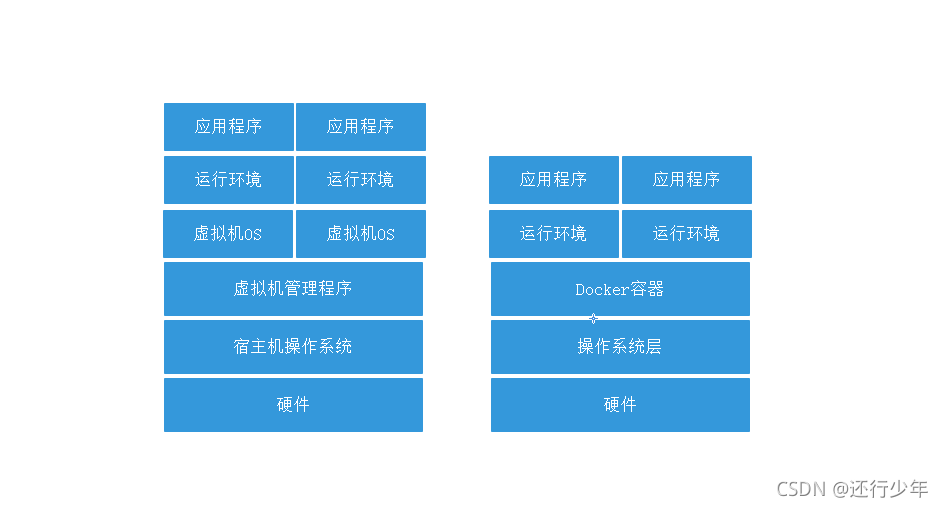
4.使用Docker的意义
- Docker解决了传统虚拟机环境孤岛的问题
- Docker把容器化技术做成了标准化平台
docker引擎统一了基础设施环境
docker引擎统一了程序打包方式
docker引擎统一了程序部署方式
5.namespace:名称空间
| mount | 文件系统,挂载点 |
|---|---|
| user | 操作进程的用户和用户组 |
| pid | 进程编号 |
| uts | 主机名和主机域 |
| ipc | 信号量、消息队列、共享内存 |
| net | 网络设备、网络协议栈、端口等 |
- 应用与应用的隔离
应用A与应用B隔离,在操作系统中式通过namaspace实现的,只有通过以上六个空间隔离,才能认为两个应用实现了完全隔离
6.CGroups:控制组
linux上的Docker引擎还依赖于另一种称为控制组的技术。控制允许Docker引擎将可用的硬件资源共享给容器,并有选择的实现限制和约束
二、Docker的核心概念与安装
1.镜像:image
Docker镜像是创建容器的基础,类似于虚拟机的快照,可以理解为是一个面向Docker引擎的只读模板
Docker提供了简单的机制来创建和更新现有的镜像,也可以从网上下载已经做好的应用镜像来直接使用
2.容器:container
Docker的容器是从镜像创建的运行实例,它可以被启动、停止和删除。所创建的每一个容器都是相互隔离、互不可见的,可以保证平台的安全性、还可以把容器看成是一个简易的Linux环境,Docker利用容器来运行和隔离应用
3.仓库:repository
Docker仓库是用来集中保存镜像的地方,当创建了自己的镜像之后,可以使用push命令将他上传到公共仓库或者私有仓库,当下次需要在另一台机器上使用这个镜像的时候这个镜像时候,只需要从仓库上pull下来即可
4.安装Docker
4.1 安装依赖包
[root@localhost ~]# yum install -y yum-utils device-mapper-persistent-data lvm2
已加载插件:fastestmirror, langpacks
Loading mirror speeds from cached hostfile
 * base: mirrors.aliyun.com
 * extras: mirrors.aliyun.com
 * updates: mirrors.aliyun.com
软件包 yum-utils-1.1.31-54.el7_8.noarch 已安装并且是最新版本
软件包 device-mapper-persistent-data-0.8.5-3.el7_9.2.x86_64 已安装并且是最新版本
软件包 7:lvm2-2.02.187-6.el7_9.5.x86_64 已安装并且是最新版本
无须任何处理
[root@localhost ~]#
4.2 设置阿里云镜像源
[root@localhost ~]# yum-config-manager --add-repo https://mirrors.aliyun.com/docker-ce/linux/centos/docker-ce.repo
已加载插件:fastestmirror, langpacks
adding repo from: https://mirrors.aliyun.com/docker-ce/linux/centos/docker-ce.repo
grabbing file https://mirrors.aliyun.com/docker-ce/linux/centos/docker-ce.repo to /etc/yum.repos.d/docker-ce.repo
repo saved to /etc/yum.repos.d/docker-ce.repo
[root@localhost ~]# cat /etc/yum.repos.d/docker-ce.repo
[docker-ce-stable]
name=Docker CE Stable - $basearch
baseurl=https://mirrors.aliyun.com/docker-ce/linux/centos/$releasever/$basearch/stable
enabled=1
gpgcheck=1
gpgkey=https://mirrors.aliyun.com/docker-ce/linux/centos/gpg

[docker-ce-stable-debuginfo]
name=Docker CE Stable - Debuginfo $basearch
baseurl=https://mirrors.aliyun.com/docker-ce/linux/centos/$releasever/debug-$basearch/stable
enabled=0
gpgcheck=1
gpgkey=https://mirrors.aliyun.com/docker-ce/linux/centos/gpg

[docker-ce-stable-source]
name=Docker CE Stable - Sources
baseurl=https://mirrors.aliyun.com/docker-ce/linux/centos/$releasever/source/stable
enabled=0
gpgcheck=1
gpgkey=https://mirrors.aliyun.com/docker-ce/linux/centos/gpg

[docker-ce-test]
name=Docker CE Test - $basearch
baseurl=https://mirrors.aliyun.com/docker-ce/linux/centos/$releasever/$basearch/test
enabled=0
gpgcheck=1
gpgkey=https://mirrors.aliyun.com/docker-ce/linux/centos/gpg

[docker-ce-test-debuginfo]
name=Docker CE Test - Debuginfo $basearch
baseurl=https://mirrors.aliyun.com/docker-ce/linux/centos/$releasever/debug-$basearch/test
enabled=0
gpgcheck=1
gpgkey=https://mirrors.aliyun.com/docker-ce/linux/centos/gpg

[docker-ce-test-source]
name=Docker CE Test - Sources
baseurl=https://mirrors.aliyun.com/docker-ce/linux/centos/$releasever/source/test
enabled=0
gpgcheck=1
gpgkey=https://mirrors.aliyun.com/docker-ce/linux/centos/gpg

[docker-ce-nightly]
name=Docker CE Nightly - $basearch
baseurl=https://mirrors.aliyun.com/docker-ce/linux/centos/$releasever/$basearch/nightly
enabled=0
gpgcheck=1
gpgkey=https://mirrors.aliyun.com/docker-ce/linux/centos/gpg

[docker-ce-nightly-debuginfo]
name=Docker CE Nightly - Debuginfo $basearch
baseurl=https://mirrors.aliyun.com/docker-ce/linux/centos/$releasever/debug-$basearch/nightly
enabled=0
gpgcheck=1
gpgkey=https://mirrors.aliyun.com/docker-ce/linux/centos/gpg

[docker-ce-nightly-source]
name=Docker CE Nightly - Sources
baseurl=https://mirrors.aliyun.com/docker-ce/linux/centos/$releasever/source/nightly
enabled=0
gpgcheck=1
gpgkey=https://mirrors.aliyun.com/docker-ce/linux/centos/gpg
[root@localhost ~]#
4.3 安装docker社区版
[root@localhost ~]# yum -y install docker-ce
已加载插件:fastestmirror, langpacks
Loading mirror speeds from cached hostfile
 * base: mirrors.aliyun.com
 * extras: mirrors.aliyun.com
 * updates: mirrors.aliyun.com
软件包 3:docker-ce-20.10.8-3.el7.x86_64 已安装并且是最新版本
无须任何处理
[root@localhost ~]#
4.4 启动docker
[root@localhost ~]# systemctl enable docker
Created symlink from /etc/systemd/system/multi-user.target.wants/docker.service to /usr/lib/systemd/system/docker.service.
[root@localhost ~]# systemctl start docker
[root@localhost ~]#
4.5 查看docker服务
[root@localhost ~]# docker version
Client: Docker Engine - Community
 Version:           20.10.8
 API version:       1.41
 Go version:        go1.16.6
 Git commit:        3967b7d
 Built:             Fri Jul 30 19:55:49 2021
 OS/Arch:           linux/amd64
 Context:           default
 Experimental:      true

Server: Docker Engine - Community
 Engine:
  Version:          20.10.8
  API version:      1.41 (minimum version 1.12)
  Go version:       go1.16.6
  Git commit:       75249d8
  Built:            Fri Jul 30 19:54:13 2021
  OS/Arch:          linux/amd64
  Experimental:     false
 containerd:
  Version:          1.4.9
  GitCommit:        e25210fe30a0a703442421b0f60afac609f950a3
 runc:
  Version:          1.0.1
  GitCommit:        v1.0.1-0-g4144b63
 docker-init:
  Version:          0.19.0
  GitCommit:        de40ad0
[root@localhost ~]#
4.6 镜像加速
[root@localhost ~]# sudo mkdir -p /etc/docker
[root@localhost ~]# sudo tee /etc/docker/daemon.json <<-'EOF'
> {
>   "registry-mirrors": ["https://xxxxxx.mirror.aliyuncs.com"]
> }
> EOF

[root@localhost ~]# sudo systemctl daemon-reload
[root@localhost ~]# sudo systemctl restart docker
[root@localhost ~]# cat /etc/docker/daemon.json
{
  "registry-mirrors": ["https://xxxxxx.mirror.aliyuncs.com"]
}
镜像加速注册地址:https://help.aliyun.com/product/60716.html
三、Docker镜像操作
1.搜索镜像
[root@localhost ~]# docker search hello-world
NAME                                       DESCRIPTION                                     STARS     OFFICIAL   AUTOMATED
hello-world                                Hello World! (an example of minimal Dockeriz…   1519      [OK]
kitematic/hello-world-nginx                A light-weight nginx container that demonstr…   150
tutum/hello-world                          Image to test docker deployments. Has Apache…   84                   [OK]
dockercloud/hello-world                    Hello World!                                    19                   [OK]
crccheck/hello-world                       Hello World web server in under 2.5 MB          15                   [OK]
vad1mo/hello-world-rest                    A simple REST Service that echoes back all t…   5                    [OK]
arm32v7/hello-world                        Hello World! (an example of minimal Dockeriz…   3
ppc64le/hello-world                        Hello World! (an example of minimal Dockeriz…   2
markmnei/hello-world-java-docker           Hello-World-Java-docker                         1                    [OK]
ansibleplaybookbundle/hello-world-apb      An APB which deploys a sample Hello World! a…   1                    [OK]
thomaspoignant/hello-world-rest-json       This project is a REST hello-world API to bu…   1
datawire/hello-world                       Hello World! Simple Hello World implementati…   1                    [OK]
ansibleplaybookbundle/hello-world-db-apb   An APB which deploys a sample Hello World! a…   1                    [OK]
souravpatnaik/hello-world-go               hello-world in Golang                           1
strimzi/hello-world-streams                                                                0
strimzi/hello-world-producer                                                               0
strimzi/hello-world-consumer                                                               0
burdz/hello-world-k8s                      To provide a simple webserver that can have …   0                    [OK]
businessgeeks00/hello-world-nodejs                                                         0
koudaiii/hello-world                                                                       0
nirmata/hello-world                                                                        0                    [OK]
freddiedevops/hello-world-spring-boot                                                      0
infrastructureascode/hello-world           A tiny "Hello World" web server with a healt…   0                    [OK]
dandando/hello-world-dotnet                                                                0
garystafford/hello-world                   Simple hello-world Spring Boot service for t…   0                    [OK]
[root@localhost ~]#
2.获取镜像
[root@localhost ~]# docker pull hello-world  //默认下载最新的镜像
Using default tag: latest
latest: Pulling from library/hello-world
b8dfde127a29: Pull complete
Digest: sha256:7d91b69e04a9029b99f3585aaaccae2baa80bcf318f4a5d2165a9898cd2dc0a1
Status: Downloaded newer image for hello-world:latest
docker.io/library/hello-world:latest
3.查看镜像信息
[root@localhost ~]# docker images  //查看所有镜像
REPOSITORY    TAG       IMAGE ID       CREATED        SIZE
hello-world   latest    d1165f221234   6 months ago   13.3kB
[root@localhost ~]# docker inspect d1165f221234
[
    {
        "Id": "sha256:d1165f2212346b2bab48cb01c1e39ee8ad1be46b87873d9ca7a4e434980a7726",
        "RepoTags": [
            "hello-world:latest"
        ],
        "RepoDigests": [
            "hello-world@sha256:7d91b69e04a9029b99f3585aaaccae2baa80bcf318f4a5d2165a9898cd2dc0a1"
        ],
        "Parent": "",
        "Comment": "",
        "Created": "2021-03-05T23:25:25.230064203Z",
        "Container": "f5a78ef54769bb8490754e9e063a89f90cc8eee6a6c5a0a72655826e99df116e",
        "ContainerConfig": {
            "Hostname": "f5a78ef54769",
            "Domainname": "",
            "User": "",
            "AttachStdin": false,
            "AttachStdout": false,
            "AttachStderr": false,
            "Tty": false,
            "OpenStdin": false,
            "StdinOnce": false,
            "Env": [
                "PATH=/usr/local/sbin:/usr/local/bin:/usr/sbin:/usr/bin:/sbin:/bin"
            ],
            "Cmd": [
                "/bin/sh",
                "-c",
                "#(nop) ",
                "CMD [\"/hello\"]"
            ],
            "Image": "sha256:77fe0a37fa6ce641a004815f2761a9042618557d253f312cd3da61780e372c8f",
            "Volumes": null,
            "WorkingDir": "",
            "Entrypoint": null,
            "OnBuild": null,
            "Labels": {}
        },
        "DockerVersion": "19.03.12",
        "Author": "",
        "Config": {
            "Hostname": "",
            "Domainname": "",
            "User": "",
            "AttachStdin": false,
            "AttachStdout": false,
            "AttachStderr": false,
            "Tty": false,
            "OpenStdin": false,
            "StdinOnce": false,
            "Env": [
                "PATH=/usr/local/sbin:/usr/local/bin:/usr/sbin:/usr/bin:/sbin:/bin"
            ],
            "Cmd": [
                "/hello"
            ],
            "Image": "sha256:77fe0a37fa6ce641a004815f2761a9042618557d253f312cd3da61780e372c8f",
            "Volumes": null,
            "WorkingDir": "",
            "Entrypoint": null,
            "OnBuild": null,
            "Labels": null
        },
        "Architecture": "amd64",
        "Os": "linux",
        "Size": 13336,
        "VirtualSize": 13336,
        "GraphDriver": {
            "Data": {
                "MergedDir": "/var/lib/docker/overlay2/53c816c452bcf1d941be373ed946d3fd81d146b609ed1aa52ed33acdf1fe68ad/merged",
                "UpperDir": "/var/lib/docker/overlay2/53c816c452bcf1d941be373ed946d3fd81d146b609ed1aa52ed33acdf1fe68ad/diff",
                "WorkDir": "/var/lib/docker/overlay2/53c816c452bcf1d941be373ed946d3fd81d146b609ed1aa52ed33acdf1fe68ad/work"
            },
            "Name": "overlay2"
        },
        "RootFS": {
            "Type": "layers",
            "Layers": [
                "sha256:f22b99068db93900abe17f7f5e09ec775c2826ecfe9db961fea68293744144bd"
            ]
        },
        "Metadata": {
            "LastTagTime": "0001-01-01T00:00:00Z"
        }
    }
]
[root@localhost ~]#
4.为本地镜像添加新的标签
[root@localhost ~]# docker images
REPOSITORY    TAG       IMAGE ID       CREATED        SIZE
hello-world   latest    d1165f221234   6 months ago   13.3kB
[root@localhost ~]# docker tag hello-world hello-world:new
[root@localhost ~]# docker images
REPOSITORY    TAG       IMAGE ID       CREATED        SIZE
hello-world   latest    d1165f221234   6 months ago   13.3kB
hello-world   new       d1165f221234   6 months ago   13.3kB
5.删除镜像
[root@localhost ~]# docker images
REPOSITORY    TAG       IMAGE ID       CREATED        SIZE
hello-world   latest    d1165f221234   6 months ago   13.3kB
hello-world   new       d1165f221234   6 months ago   13.3kB
[root@localhost ~]# docker rmi hello-world:latest  //如果该镜像被容器使用,则应该先删除容器,再删除镜像
Untagged: hello-world:latest
[root@localhost ~]# docker images
REPOSITORY    TAG       IMAGE ID       CREATED        SIZE
hello-world   new       d1165f221234   6 months ago   13.3kB
[root@localhost ~]#
6.存出和载入镜像
[root@localhost ~]# docker save -o hello hello-world  //存出镜像到文件hello
[root@localhost ~]# ls -l hello
-rw------- 1 root root 24576 9月   4 21:54 hello
[root@localhost ~]# docker rmi hello-world:new  //删除镜像
Untagged: hello-world:new
Untagged: hello-world@sha256:7d91b69e04a9029b99f3585aaaccae2baa80bcf318f4a5d2165a9898cd2dc0a1
Deleted: sha256:d1165f2212346b2bab48cb01c1e39ee8ad1be46b87873d9ca7a4e434980a7726
Deleted: sha256:f22b99068db93900abe17f7f5e09ec775c2826ecfe9db961fea68293744144bd
[root@localhost ~]# docker images   //已无镜像
REPOSITORY   TAG       IMAGE ID   CREATED   SIZE
[root@localhost ~]# docker load < hello   //载入镜像
f22b99068db9: Loading layer [==================================================>]  15.36kB/15.36kB
Loaded image: hello-world:new
[root@localhost ~]# docker images   //已有镜像
REPOSITORY    TAG       IMAGE ID       CREATED        SIZE
hello-world   new       d1165f221234   6 months ago   13.3kB
7.上传镜像
[root@localhost ~]# docker pull hello-world  //拉取镜像
Using default tag: latest
latest: Pulling from library/hello-world
b8dfde127a29: Pull complete
Digest: sha256:7d91b69e04a9029b99f3585aaaccae2baa80bcf318f4a5d2165a9898cd2dc0a1
Status: Downloaded newer image for hello-world:latest
docker.io/library/hello-world:latest
[root@localhost ~]# docker tag hello-world:latest 192.168.30.7:5000/hw    //修改标签
[root@localhost ~]# docker push 192.168.30.7:5000/hw   //上传镜像
Using default tag: latest
The push refers to repository [192.168.30.7:5000/hw]
f22b99068db9: Pushed
latest: digest: sha256:1b26826f602946860c279fce658f31050cff2c596583af237d971f4629b57792 size: 525
[root@localhost ~]# curl -XGET http://192.168.30.7:5000/v2/_catalog  //查看仓库镜像
{"repositories":["hw"]}
四、Docker容器操作
1.创建与启动容器
[root@localhost ~]# docker images
REPOSITORY    TAG       IMAGE ID       CREATED        SIZE
hello-world   new       d1165f221234   6 months ago   13.3kB
[root@localhost ~]# docker run centos:7  //本地无镜像会自动从仓库拉取,并创建和启动容器,并在命令结束后关闭容器
Unable to find image 'centos:7' locally
7: Pulling from library/centos
2d473b07cdd5: Pull complete
Digest: sha256:0f4ec88e21daf75124b8a9e5ca03c37a5e937e0e108a255d890492430789b60e
Status: Downloaded newer image for centos:7
[root@localhost ~]# docker images
REPOSITORY    TAG       IMAGE ID       CREATED        SIZE
hello-world   new       d1165f221234   6 months ago   13.3kB
centos        7         8652b9f0cb4c   9 months ago   204MB
[root@localhost ~]# docker ps -a  //查看所有容器
CONTAINER ID   IMAGE      COMMAND       CREATED          STATUS                      PORTS     NAMES
fd5ce885913d   centos:7   "/bin/bash"   42 seconds ago   Exited (0) 41 seconds ago             laughing_feynman
[root@localhost ~]# docker create -it hello-world:new /bin/bash   //创建容器
dd5043fb886fb95349853ff6a5b29abb652d787c442eee34e0c7ff75fcf1a500
[root@localhost ~]# docker ps  //查看所有运行的容器
CONTAINER ID   IMAGE     COMMAND   CREATED   STATUS    PORTS     NAMES
[root@localhost ~]# docker ps -a
CONTAINER ID   IMAGE             COMMAND       CREATED         STATUS                     PORTS     NAMES
dd5043fb886f   hello-world:new   "/bin/bash"   6 seconds ago   Created                              hopeful_proskuriakova
fd5ce885913d   centos:7          "/bin/bash"   3 minutes ago   Exited (0) 3 minutes ago             laughing_feynman
- -i :让容器的标准输入保持打开
- -t:分配一个伪终端
- -d:后台守护进程的方式运行
2.启动容器
[root@localhost ~]# docker start 52fb0af2d2f1
52fb0af2d2f1
[root@localhost ~]# docker ps -a
CONTAINER ID   IMAGE      COMMAND       CREATED          STATUS         PORTS     NAMES
52fb0af2d2f1   centos:7   "/bin/bash"   53 seconds ago   Up 3 seconds             flamboyant_allen
[root@localhost ~]#
3.进入容器
[root@localhost ~]# docker run -it centos:7 /bin/sh  //启动并进入容器
sh-4.2# ls
anaconda-post.log  bin	dev  etc  home	lib  lib64  media  mnt	opt  proc  root  run  sbin  srv  sys  tmp  usr	var
sh-4.2# exit   //退出容器,退出就是关闭状态
exit

[root@localhost ~]# docker run centos:7 /bin/sh -c ls /    //启动并执行一条shell命令
anaconda-post.log
bin
dev
etc
home
lib
lib64
media
mnt
opt
proc
root
run
sbin
srv
sys
tmp
usr
var
[root@localhost ~]#
[root@localhost ~]# docker ps -a
CONTAINER ID   IMAGE      COMMAND       CREATED          STATUS         PORTS     NAMES
52fb0af2d2f1   centos:7   "/bin/bash"   53 seconds ago   Up 3 seconds             flamboyant_allen
[root@localhost ~]# docker exec -it 52fb0af2d2f1 /bin/bash  //进入容器,退出后并不会关闭容器
[root@52fb0af2d2f1 /]# ls
anaconda-post.log  bin  dev  etc  home  lib  lib64  media  mnt  opt  proc  root  run  sbin  srv  sys  tmp  usr  var
[root@52fb0af2d2f1 /]#
4.关闭容器
[root@localhost ~]# docker ps -a
CONTAINER ID   IMAGE      COMMAND       CREATED         STATUS         PORTS     NAMES
52fb0af2d2f1   centos:7   "/bin/bash"   6 minutes ago   Up 5 minutes             flamboyant_allen
[root@localhost ~]# docker stop 52fb0af2d2f1
52fb0af2d2f1
[root@localhost ~]# docker ps -a
CONTAINER ID   IMAGE      COMMAND       CREATED         STATUS                       PORTS     NAMES
52fb0af2d2f1   centos:7   "/bin/bash"   7 minutes ago   Exited (137) 2 seconds ago             flamboyant_allen
[root@localhost ~]#
5.删除容器
[root@localhost ~]# docker ps -a  //每次执行run都会创建一个容器
CONTAINER ID   IMAGE             COMMAND             CREATED          STATUS                       PORTS     NAMES
9b8e6b3250f5   centos:7          "/bin/sh -c ls /"   2 minutes ago    Exited (0) 2 minutes ago               youthful_goodall
ef73d513dbd8   centos:7          "/bin/sh - ls /"    3 minutes ago    Exited (126) 3 minutes ago             mystifying_spence
10ea3fffb083   centos:7          "-C ls /"           4 minutes ago    Created                                frosty_curie
cee6fe0efbed   centos:7          "-c ls /"           5 minutes ago    Created                                tender_wright
5470e08b0029   centos:7          "/bin/sh"           5 minutes ago    Exited (0) 5 minutes ago               affectionate_hopper
5d261a8819be   centos:7          "-c ls /"           6 minutes ago    Created                                boring_jemison
a7ee940fd1cb   centos:7          "-c ls /"           9 minutes ago    Created                                frosty_napier
dd5043fb886f   hello-world:new   "/bin/bash"         14 minutes ago   Created                                hopeful_proskuriakova
fd5ce885913d   centos:7          "/bin/bash"         17 minutes ago   Exited (0) 10 minutes ago              laughing_feynman
[root@localhost ~]# docker rm `docker ps -aq`  //删除所有未启动的容器,慎用
9b8e6b3250f5
ef73d513dbd8
10ea3fffb083
cee6fe0efbed
5470e08b0029
5d261a8819be
a7ee940fd1cb
dd5043fb886f
fd5ce885913d
[root@localhost ~]# docker ps -a
CONTAINER ID   IMAGE     COMMAND   CREATED   STATUS    PORTS     NAMES
[root@localhost ~]#
6.导出与导入容器
[root@localhost ~]# docker ps -a
CONTAINER ID   IMAGE      COMMAND       CREATED         STATUS                        PORTS     NAMES
52fb0af2d2f1   centos:7   "/bin/bash"   8 minutes ago   Exited (137) 56 seconds ago             flamboyant_allen
[root@localhost ~]# docker export 52fb0af2d2f1 > centos7.tar  //导出容器
[root@localhost ~]# ls -l centos7.tar
-rw-r--r-- 1 root root 211688960 9月   4 22:42 centos7.tar
[root@localhost ~]# cat centos7.tar | docker import - centes7:test  //导入容器(生成镜像)
sha256:056d86e02ecb7c2f56601db6cca1dabf6734e65cb2be437506e324c7852d6dac
[root@localhost ~]# docker images
REPOSITORY    TAG       IMAGE ID       CREATED          SIZE
centes7       test      056d86e02ecb   10 seconds ago   204MB
hello-world   new       d1165f221234   6 months ago     13.3kB
centos        7         8652b9f0cb4c   9 months ago     204MB
五、Docker资源控制
构建一个用于测试的镜像
[root@localhost ~]# cat  Dockerfile
FROM centos:7
RUN yum install -y wget
RUN wget -O /etc/yum.repos.d/epel.repo http://mirrors.aliyun.com/repo/epel-7.repo
RUN yum install -y stress  //压力测试工具

[root@localhost ~]# docker build -t centos:stress .
。。。
Successfully built 6e6f44cb18d0
Successfully tagged centos:stress
[root@localhost ~]# docker images
REPOSITORY   TAG       IMAGE ID       CREATED          SIZE
centos       stress    6e6f44cb18d0   24 seconds ago   511MB
centos       7         8652b9f0cb4c   9 months ago     204MB
[root@localhost ~]#
1.限制CPU使用率
[root@localhost ~]# docker run -tid --name cpu512 --cpu-shares 512 centos:stress stress -c 10   //容器产生十个子进程函数
124a438a4d4a365ee67df6c30ed5209fb4752b579d4628f09a66f008f867d54d
[root@localhost ~]# docker run -tid --name cpu1024 --cpu-shares 1024 centos:stress stress -c 10
c74943e0bd1cd2b73549fe28cc1ea8d3af23a5f3f135067b71c28c1ceb78bcbb
[root@localhost ~]# docker stats    //基本是两倍的关系


CONTAINER ID   NAME      CPU %     MEM USAGE / LIMIT   MEM %     NET I/O     BLOCK I/O   PIDS
c74943e0bd1c   cpu1024   406.73%   336KiB / 5.651GiB   0.01%     656B / 0B   0B / 0B     11
124a438a4d4a   cpu512    192.65%   336KiB / 5.651GiB   0.01%     656B / 0B   0B / 0B     11
2.CPU周期限制
[root@localhost ~]# docker run -tid --cpu-period 100000 --cpu-quota 200000 centos:stress //一个周期内,cpu可用多少时间来跑这个容器
ffe32cf8a6d0f705c4888addc2a930b89ddb46a6e5f0caa3165bfb2bf08f6254
[root@localhost ~]# docker ps
CONTAINER ID   IMAGE           COMMAND          CREATED          STATUS          PORTS     NAMES
ffe32cf8a6d0   centos:stress   "/bin/bash"      14 seconds ago   Up 12 seconds             angry_raman
c74943e0bd1c   centos:stress   "stress -c 10"   6 minutes ago    Up 6 minutes              cpu1024
124a438a4d4a   centos:stress   "stress -c 10"   6 minutes ago    Up 6 minutes              cpu512
[root@localhost ~]# docker inspect angry_raman | grep  -i  "CPU"
            "CpuShares": 0,
            "NanoCpus": 0,
            "CpuPeriod": 100000,
            "CpuQuota": 200000,
3.CPU Core控制
[root@localhost ~]# docker run -itd --name cpu1 --cpuset-cpus 0-1 centos:stress   //指定容器运行在0/1内核上
b016e72a884f5e2ae886d7338a7fe6fb6a94bf7b488f38887fed21d2c8c94c17
[root@localhost ~]# docker ps
CONTAINER ID   IMAGE           COMMAND       CREATED         STATUS         PORTS     NAMES
b016e72a884f   centos:stress   "/bin/bash"   2 minutes ago   Up 2 minutes             cpu1
[root@localhost docker]# cat /sys/fs/cgroup/cpuset/docker/b016e72a884f5e2ae886d7338a7fe6fb6a94bf7b488f38887fed21d2c8c94c17/cpuset.cpus
0-1
[root@localhost docker]#
4.CPU配额控制参数的混合使用
[root@localhost docker]# docker run -itd --name cpu2 --cpu-shares 512 --cpuset-cpus 0-1 centos:stress  stress -c 1  //容器运行0/1内核上
23efe1d086201c01a4abf831f54b0e0befcb6a6fd87a7b8d6428da4110b9c18e
[root@localhost docker]# top    //内核1直接拉满
top - 19:04:10 up  3:59,  1 user,  load average: 0.16, 3.94, 6.33
Tasks: 206 total,   3 running, 203 sleeping,   0 stopped,   0 zombie
%Cpu0  :  0.0 us,  0.0 sy,  0.0 ni,100.0 id,  0.0 wa,  0.0 hi,  0.0 si,  0.0 st
%Cpu1  :100.0 us,  0.0 sy,  0.0 ni,  0.0 id,  0.0 wa,  0.0 hi,  0.0 si,  0.0 st
[root@localhost docker]# docker run -itd --name cpu3 --cpu-shares 512 --cpuset-cpus 0-1 centos:stress  stress -c 1    //再次运行一个容器
ba446125e084f5df8a1144ab91c69dde4675cbcdbf049a12cfde8e46e1531425
[root@localhost docker]# top   //内核0直接拉满
top - 19:06:04 up  4:01,  1 user,  load average: 0.88, 3.00, 5.71
Tasks: 209 total,   3 running, 206 sleeping,   0 stopped,   0 zombie
%Cpu0  :100.0 us,  0.0 sy,  0.0 ni,  0.0 id,  0.0 wa,  0.0 hi,  0.0 si,  0.0 st
%Cpu1  :100.0 us,  0.0 sy,  0.0 ni,  0.0 id,  0.0 wa,  0.0 hi,  0.0 si,  0.0 st
5.内存限额
[root@localhost docker]# docker run -itd -m 200M --memory-swap=300M centos:stress   //内存200M 交换分区300M
957fb0b56122d05ec67b4af84bf344564daf888e423771e9f25c1b511e6216fc
[root@localhost docker]# cd /sys/fs/cgroup/memory/docker/957fb0b56122d05ec67b4af84bf344564daf888e423771e9f25c1b511e6216fc
[root@localhost 957fb0b56122d05ec67b4af84bf344564daf888e423771e9f25c1b511e6216fc]# cat memory.
memory.failcnt                      memory.kmem.tcp.usage_in_bytes      memory.numa_stat
memory.force_empty                  memory.kmem.usage_in_bytes          memory.oom_control
memory.kmem.failcnt                 memory.limit_in_bytes               memory.pressure_level
memory.kmem.limit_in_bytes          memory.max_usage_in_bytes           memory.soft_limit_in_bytes
memory.kmem.max_usage_in_bytes      memory.memsw.failcnt                memory.stat
memory.kmem.slabinfo                memory.memsw.limit_in_bytes         memory.swappiness
memory.kmem.tcp.failcnt             memory.memsw.max_usage_in_bytes     memory.usage_in_bytes
memory.kmem.tcp.limit_in_bytes      memory.memsw.usage_in_bytes         memory.use_hierarchy
memory.kmem.tcp.max_usage_in_bytes  memory.move_charge_at_immigrate
[root@localhost 957fb0b56122d05ec67b4af84bf344564daf888e423771e9f25c1b511e6216fc]# cat memory.limit_in_bytes
209715200
[root@localhost 957fb0b56122d05ec67b4af84bf344564daf888e423771e9f25c1b511e6216fc]# cat memory.memsw.limit_in_bytes
314572800
6.Block IO的限制
[root@localhost ~]# docker run -dit --name io600 --blkio-weight 600 centos:stress  //blkio-weight是权重
0c0359b9aa3387c5259325d6096f67eadef9d209232f33693fba758d9b36fe1c
[root@localhost ~]# docker run -dit --name io300 --blkio-weight 300 centos:stress
59aaf8fcf62b9d2271b4b1dc3401bb2f08a4d09eb75050b2c800ffb3b875af0d
[root@localhost ~]# cat /sys/fs/cgroup/blkio/docker/0c0359b9aa3387c5259325d6096f67eadef9d209232f33693fba758d9b36fe1c/blkio.weight //此容器读写磁盘的带宽为下面的两倍
600
[root@localhost ~]# cat /sys/fs/cgroup/blkio/docker/59aaf8fcf62b9d2271b4b1dc3401bb2f08a4d09eb75050b2c800ffb3b875af0d/blkio.weight
300
[root@localhost ~]#
7.bps和iops的限制
[root@localhost ~]# docker run -it --device-write-bps /dev/sda:5MB centos:stress   //限制读写为5MB/s
[root@53d9863acf61 /]# dd if=/dev/zero of=test bs=1M count=20 oflag=direct
20+0 records in
20+0 records out
20971520 bytes (21 MB) copied, 4.00184 s, 5.2 MB/s
[root@53d9863acf61 /]# exit
exit
[root@localhost ~]# docker run -it --device-write-bps /dev/sda:10MB centos:stress   //限制读写10MB/s
[root@7d8fcff70ccd /]# dd if=/dev/zero of=test bs=1M count=20 oflag=direct
20+0 records in
20+0 records out
20971520 bytes (21 MB) copied, 1.9521 s, 10.7 MB/s
[root@7d8fcff70ccd /]# exit
exit
[root@localhost ~]# docker run -it  centos:stress  //无限制
[root@698f877bddfb /]# dd if=/dev/zero of=test bs=1M count=20 oflag=direct
20+0 records in
20+0 records out
20971520 bytes (21 MB) copied, 0.0217804 s, 963 MB/s
[root@698f877bddfb /]#

华为开发者空间,是为全球开发者打造的专属开发空间,汇聚了华为优质开发资源及工具,致力于让每一位开发者拥有一台云主机,基于华为根生态开发、创新。
更多推荐


 2
2 0
0- 0


 已为社区贡献3条内容

所有评论(0)