android展开收缩动画效果,Android 自定义View之展开收起的Layout
效果分析效果图来看,点击事件触发view的展开收起,并在收起状态下保留了第一个子view显示,这个展开收起其实就是view的高度变化,所以只要控制好高度,就能很简单的实现这个效果。步骤1.初始化参数 设置方向等2.根据动画执行进度计算高度初始化class ExpandLinearLayout : LinearLayout { //是否展开,默认展开 private var isOpen = tru
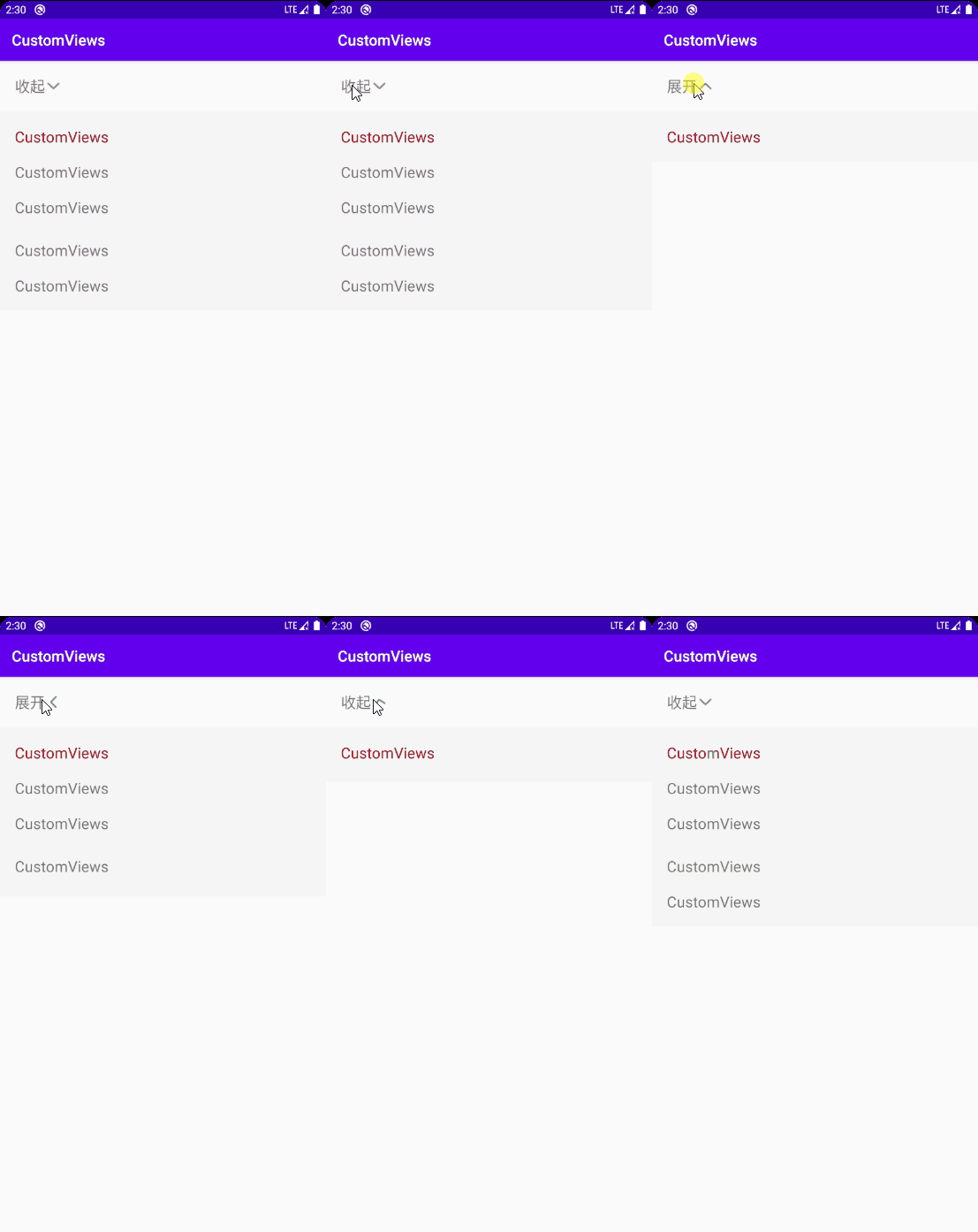
效果
分析
效果图来看,点击事件触发view的展开收起,并在收起状态下保留了第一个子view显示,这个展开收起其实就是view的高度变化,所以只要控制好高度,就能很简单的实现这个效果。
步骤
1.初始化参数 设置方向等
2.根据动画执行进度计算高度
初始化
class ExpandLinearLayout : LinearLayout { //是否展开,默认展开 private var isOpen = true //第一个子view的高度,即收起保留高度 private var firstChildHeight = 0 //所有子view高度,即总高度 private var allChildHeight = 0 /** * 动画值改变的时候 请求重新布局 */ private var animPercent: Float = 0f constructor(context: Context) : super(context) { initView() } constructor(context: Context, attributeSet: AttributeSet) : super(context, attributeSet) { initView() } constructor(context: Context, attributeSet: AttributeSet, defStyleAttr: Int) : super( context, attributeSet, defStyleAttr ) { initView() } private fun initView() { //横向的话 稍加修改计算宽度即可 orientation = VERTICAL animPercent = 1f isOpen = true }
}1
2
3
4
5
6
7
8
9
10
11
12
13
14
15
16
17
18
19
20
21
22
23
24
25
26
27
28
29
30
31
32
33
34
35
36
37
38
39
40
41
定义一个类ExpandLinearLayout ,继承自LinearLayout,当然也可以是其他的view。
然后重写构造方法,并在构造方法里面调用initView方法。
在initView方法中,我们对一些参数进行初始化操作,比如方向、默认展开。
计算高度
ok,这个就是重点了。
因为只是view本身高度的变化,我们只需要重写onMeasure去计算高度即可。
来看onMeasure:
override fun onMeasure(widthMeasureSpec: Int, heightMeasureSpec: Int) { super.onMeasure(widthMeasureSpec, heightMeasureSpec) //重置高度 allChildHeight = 0 firstChildHeight = 0 if (childCount > 0) { //遍历计算高度 for (index in 0 until childCount) { //这个地方实际使用中除了measuredHeight,以及margin等,也要计算在内 if (index == 0) { firstChildHeight = getChildAt(index).measuredHeight +getChildAt(index).marginTop + getChildAt(index).marginBottom +this.paddingTop + this.paddingBottom } //实际使用时或包括padding等 allChildHeight += getChildAt(index).measuredHeight + getChildAt(index).marginTop + getChildAt(index).marginBottom //最后一条的时候 加上当前view自身的padding if (index == childCount - 1) { allChildHeight += this.paddingTop + this.paddingBottom } } // 根据是否展开设置高度 if (isOpen) { setMeasuredDimension( widthMeasureSpec, firstChildHeight + ((allChildHeight - firstChildHeight) * animPercent).toInt() ) } else { setMeasuredDimension( widthMeasureSpec, allChildHeight - ((allChildHeight - firstChildHeight) * animPercent).toInt() ) } } }1
2
3
4
5
6
7
8
9
10
11
12
13
14
15
16
17
18
19
20
21
22
23
24
25
26
27
28
29
30
31
32
33
34
35
36
37
38
39
40
onMeasure里面也是分了两个步骤的:
遍历计算高度
//遍历计算高度
for (index in 0 until childCount) { //这个地方实际使用中除了measuredHeight,以及margin等,也要计算在内 if (index == 0) { firstChildHeight = getChildAt(index).measuredHeight +getChildAt(index).marginTop + getChildAt(index).marginBottom +this.paddingTop + this.paddingBottom } //实际使用时或包括padding等 allChildHeight += getChildAt(index).measuredHeight + getChildAt(index).marginTop + getChildAt(index).marginBottom //最后一条的时候 加上当前view自身的padding if (index == childCount - 1) { allChildHeight += this.paddingTop + this.paddingBottom }
}1
2
3
4
5
6
7
8
9
10
11
12
13
14
15
来看第一个if判断,记录了第一个子view的高度,这里需要注意,除了measuredHeight,margin也要算上,而且父view的内边距padding也要加上,因为如果父view的padding很大的话,收起时view可能会显示不出来的。
然后就是总高度的计算,道理同上。
来看最后一个if判断,同样总高度计算完之后也要加上父view的上下padding,才是完整的高度。
第一个判断可以理解为收起状态的高度,第二个判断可以理解为展开状态的高度。
展开收起逻辑
// 根据是否展开设置高度
if (isOpen) { setMeasuredDimension( widthMeasureSpec, firstChildHeight + ((allChildHeight - firstChildHeight) * animPercent).toInt() )
} else { setMeasuredDimension( widthMeasureSpec, allChildHeight - ((allChildHeight - firstChildHeight) * animPercent).toInt() )
}1
2
3
4
5
6
7
8
9
10
11
12
因为第一个子view是保留显示的,所以在计算的时候都需要减去第一个子view的高度,就是剩余高度。
剩余高度可以很简单的计算出来,但是如何在显示的时候不突兀呢。
这里加一个动画,根据动画的执行进度来计算。
展开:第一个子view的高度 + 剩余高度 × 0到1的Float动画值
收起:总高度 - 剩余高度 × 1到0的Float动画值
author:yechaoa
动画
写一个方法控制展开收起,并在展开收起的时候执行动画。
fun toggle(): Boolean { isOpen = !isOpen startAnim() return isOpen } /** * 执行动画的时候 更改 animPercent 属性的值 即从0-1 */ @SuppressLint("AnimatorKeep") private fun startAnim() { //ofFloat,of xxxX 根据参数类型来确定 //1,动画对象,即当前view。2.动画属性名。3,起始值。4,目标值。 val animator = ObjectAnimator.ofFloat(this, "animPercent", 0f, 1f) animator.duration = 500 animator.start() }1
2
3
4
5
6
7
8
9
10
11
12
13
14
15
16
17
并修改我们的动画参数:
/** * 动画值改变的时候 请求重新布局 */ private var animPercent: Float = 0f set(value) { field = value requestLayout() }1
2
3
4
5
6
7
8
set value的时候调用requestLayout(),重新执行onMeasure。
调用
xml
... 1
2
3
4
5
6
7
8
9
10
11
12
13
14
15
16
17
18
19
代码
ll_btn.setOnClickListener { val toggle = ell.toggle() tv_tip.text = if (toggle) "收起" else "展开" }1
2
3
4
扩展
横向:计算高度变成计算宽度即可
高度:可以根据xml自定义属性来控制保留高度
总结
总的来说,效果还是比较实用的,难度系数也不高,可以根据扩展自己去进一步完善。
如果对你有一点点帮助,点个赞呗 ^ _ ^
Github
文章来源: blog.csdn.net,作者:yechaoa,版权归原作者所有,如需转载,请联系作者。
原文链接:blog.csdn.net/yechaoa/article/details/113847705

华为开发者空间,是为全球开发者打造的专属开发空间,汇聚了华为优质开发资源及工具,致力于让每一位开发者拥有一台云主机,基于华为根生态开发、创新。
更多推荐



 0
0 0
0- 0


 已为社区贡献3条内容

所有评论(0)