android 自定义监听器 handler,Android自定义简单组件
自定义一个简单的安卓组件,以一个按钮为例,如图: 1.首先分析需要自己确定的属性包括边框的宽度、颜色、文字、文字的颜色等。那么就先写出属性:attrs.xml2.如何实现这个布局效果这里考虑使用帧布局,上面的空间盖住背景即可:android:id="@+id/ui_button_wrapper"android:layout_width="wrap_content"android:layout_he
自定义一个简单的安卓组件,以一个按钮为例,如图:
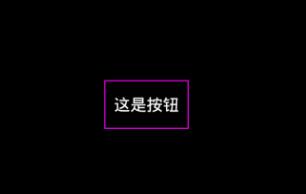

1.首先分析需要自己确定的属性
包括边框的宽度、颜色、文字、文字的颜色等。那么就先写出属性:attrs.xml
2.如何实现这个布局效果
这里考虑使用帧布局,上面的空间盖住背景即可:
android:id="@+id/ui_button_wrapper"
android:layout_width="wrap_content"
android:layout_height="wrap_content"
android:orientation="vertical"
>
android:id="@+id/ui_button"
android:layout_width="wrap_content"
android:layout_height="wrap_content"
android:text="按钮"
android:layout_gravity="center"
android:paddingLeft="8dp"
android:paddingRight="8dp"
android:textSize="15sp"
/>
3.接下来是解析自己定义的属性:UIButton.java
在这里用到了dimen、color等资源,准备一个就ok。
package com.ui.button;
import android.content.Context;
import android.content.res.TypedArray;
import android.graphics.Color;
import android.util.AttributeSet;
import android.view.LayoutInflater;
import android.view.MotionEvent;
import android.view.View;
import android.widget.Button;
import android.widget.FrameLayout;
import com.example.androidui.R;
/**
*
* @author Administrator
*
* 带一个边框,边框颜色可定义的按钮
*
*/
public class UIButton extends FrameLayout{
/**
*点击时间监听
*/
public interface UiButtonClickedListener{
public void onUiButtonClicked(View view);
}
public void setOnUiButtonClickedListener(UiButtonClickedListener listener){
this.listener = listener;
}
private FrameLayout layout;
private Button uiButton;
private UiButtonClickedListener listener;
public UIButton(Context context, AttributeSet attrs, int defStyle) {
super(context, attrs, defStyle);
init(context,attrs);
}
public UIButton(Context context, AttributeSet attrs) {
super(context, attrs);
init(context,attrs);
}
public UIButton(Context context) {
super(context);
}
private void init(Context ctx,AttributeSet attrs){
layout = (FrameLayout) LayoutInflater.
from(ctx).inflate(R.layout.ui_button, this);// 'this' must !!!
uiButton = (Button) findViewById(R.id.ui_button);
uiButton.setOnTouchListener(new View.OnTouchListener() {
@Override
public boolean onTouch(View view, MotionEvent me) {
if(me.getAction() == MotionEvent.ACTION_DOWN){
view.setBackgroundColor(getResources().getColor(R.color.ui_button_selected));
}else if(me.getAction() == MotionEvent.ACTION_UP){
view.setBackgroundColor(getResources().getColor(R.color.ui_button_normal));
listener.onUiButtonClicked(view);
}
return false;
}
});
TypedArray ta = ctx.obtainStyledAttributes(attrs,R.styleable.UIButton);
int borderColor = ta.getColor(R.styleable.UIButton_border_color, Color.WHITE);
int textColor = ta.getColor(R.styleable.UIButton_text_color, Color.WHITE);
int fillColor = ta.getColor(R.styleable.UIButton_fill_color, Color.BLACK);
float borderWidth = ta.getDimension(R.styleable.UIButton_border_width, 0.0f);
String text = ta.getString(R.styleable.UIButton_button_text);
float textSie = ta.getDimension(R.styleable.UIButton_text_size, 0);
layout.setBackgroundColor(borderColor);
uiButton.setTextColor(textColor);
uiButton.setBackgroundColor(fillColor);
int margin =0 ;
if(borderWidth == 0)
margin = (int) ctx.getResources().getDimension(R.dimen.ui_button_border_width);
else
margin = (int) borderWidth;
FrameLayout.LayoutParams params = (LayoutParams) uiButton.getLayoutParams();
params.setMargins(margin, margin, margin, margin);
uiButton.setLayoutParams(params);
if(text != null)
uiButton.setText(text);
ta.recycle();
}
}
在这里定义了一个接口:UiButtonClickedListener,来实现按钮的触发事件回调。并在onTouch的UP事件里触发。
注意:这里面有个textSize,是dimen类型,因为安卓根据分辨率,系统会呈现出不同的字体大小,所以这个还是不很靠谱。
最好的办法是自己定义一个默认的大小,来确保美观。
4.使用这个控件
在布局中直接使用即可:
xmlns:tools="http://schemas.android.com/tools"
xmlns:ui_button="http://schemas.android.com/apk/res/com.example.testui"
android:layout_width="match_parent"
android:layout_height="match_parent"
android:background="#000000"
>
android:id="@+id/button"
android:layout_width="wrap_content"
android:layout_height="45dp"
ui_button:button_text="这是按钮"
ui_button:text_size="15dp"
ui_button:border_color="#ff00ff"
android:layout_centerInParent="true"/>
注意一定要加上本应用的命名空间:
xmlns:ui_button="http://schemas.android.com/apk/res/com.example.testui"
这样就可以使用自定义的布局属性了。
5.设置自定义的监听器
@Override
protected void onCreate(Bundle savedInstanceState) {
super.onCreate(savedInstanceState);
setContentView(R.layout.activity_main);
btn = (UIButton) findViewById(R.id.button);
btn.setOnUiButtonClickedListener(new UiButtonClickedListener() {
@Override
public void onUiButtonClicked(View view) {
System.out.println("ui button clicked ... ");
}
});
}
像以前一样设置即可,在上面已说明。
简单控件,如此即可。

华为开发者空间,是为全球开发者打造的专属开发空间,汇聚了华为优质开发资源及工具,致力于让每一位开发者拥有一台云主机,基于华为根生态开发、创新。
更多推荐


 0
0 0
0- 0


 已为社区贡献3条内容

所有评论(0)